
Why So Many People End Up Disappointed With Their Webcam
"I bought a webcam for remote work, but people keep telling me the picture looks grainy in meetings." "I bought one for streaming, but it won't focus on what's in my hands." Most of these disappointments come down to one thing: choosing based on the resolution number alone.
Resolution is only one factor. Autofocus accuracy, built-in microphones, tracking features, and connection type all matter — and which of these matters most depends entirely on how you plan to use the camera.
For a low-motion video call, 1080p is plenty. For game streaming or live commentary, 60fps support and framing features make a much bigger difference to comfort. On the flip side, an expensive 4K model is wasted if your meeting app only supports 720p.
This article breaks down the key criteria for choosing a webcam, then compares seven popular models by use case with their concrete specs — use it to find the one that actually fits how you work.
How to Choose a Webcam: 5 Criteria That Matter
① Resolution and Sensor Performance
Webcams typically come in three resolution tiers: 720p (HD), 1080p (Full HD), and 2160p (4K). Higher numbers mean sharper detail, but even at the same 1080p, sensor size and lens brightness make a big difference in low light. For everyday video calls, 1080p is enough. If you're recording for YouTube or archiving footage that might get zoomed in on later, a 4K model gives you more peace of mind.
② Autofocus (AF) and Framing Features
Cameras without AF can lose focus the moment you shift position. If you often stand up to explain something, look for a model with "auto-framing" that automatically tracks your face and upper body — it eliminates the hassle of constantly readjusting the angle. This feature pays off most for people who find themselves repositioning the camera mid-meeting.
③ Built-in Microphone and Audio Quality
A built-in mic keeps your cable setup simple, but it also tends to pick up typing noise and other sounds from your PC. Check whether the mic has noise cancellation and what its pickup pattern is — does it prioritize the voice in front of it, or does it capture ambient sound too? For meetings only, a built-in mic is usually fine. For streaming, it's worth planning to pair the camera with a separate mic.
④ Field of View and Frame Rate
A field of view of 70–90 degrees is standard and works well for a single person. For conference-room use with multiple people in frame, look for a wide-angle model around 100 degrees. For frame rate, 30fps is fine for meetings, but streaming or commentary with a lot of movement looks noticeably smoother at 60fps.
⑤ Connection Type and OS/App Compatibility
Most webcams use USB-A, but a growing number of laptops now have USB-C ports only — check in advance whether you'll need an adapter. Some models are also built around Windows Hello facial recognition or optimized for specific meeting apps (Teams, Zoom, etc.), so it's worth factoring in compatibility with the OS and apps you actually use day to day.
Spec Comparison Table
| Product | Resolution | Autofocus / Tracking | Built-in Mic |
|---|---|---|---|
| Logicool C920n Full HD Webcam | Full HD (1080p) | AF supported | Stereo mic built in |
| Logicool C980 4K Webcam | 4K (2160p) | AF, HDR supported | Stereo mic built in |
| ELECOM UCAM-C920FBBK Webcam | Full HD (1080p) | Fixed focus | Mic built in |
| Anker PowerConf C300 Webcam | Full HD (1080p) | AI auto-framing | Noise-canceling mic built in |
| OBSBOT Tiny 4K Webcam | 4K (2160p) | AI tracking, gesture control | Mic built in |
| Logicool StreamCam C980 | Full HD (1080p) | AF supported | Mic built in |
| Microsoft Modern Webcam | Full HD (1080p) | AF supported | Mic built in |
7 Recommended Webcams
Logicool C920n Full HD Webcam
A long-running favorite with Full HD 1080p/30fps capture, autofocus, and a stereo mic. It's been widely used by both businesses and individuals for years, which means driver info and mounting guides are easy to find online — handy if you run into trouble.
Pros
- Full HD and AF deliver plenty of performance for meetings
- Abundant setup info and reviews make it easy to get started
- The clip-on stand fits most monitors
Cons
- Noticeably grainier in low light compared to 4K models
- No advanced features like AI tracking
Best for
Anyone setting up a webcam for the first time and wanting a solid, standard option for meetings.🛒 Check the price →
Logicool C980 4K Webcam
Supports 4K and HDR capture, keeping detail intact in backlit or high-contrast scenes without blowing out highlights or crushing shadows. Its larger sensor area (compared to 1080p models) also helps reduce noise in low light. A good fit if you might zoom in on or edit footage later — streaming, recording, or archiving.
Pros
- HDR keeps faces from going dark in backlit conditions
- 4K resolution ensures solid archive quality for streaming and recording
- Built-in stereo mic makes standalone use practical
Cons
- 4K output requires reasonable USB bandwidth and processing power from your PC
- If your meeting app caps out at 1080p, you won't get the full benefit of the resolution
Best for
Anyone who streams or records and wants to prioritize video quality.🛒 Check the price →
ELECOM UCAM-C920FBBK Webcam
A simple, entry-level model with a built-in mic that connects with a single USB cable. Its fixed-focus design keeps the image stable as long as your distance from the camera doesn't change much. As a domestic manufacturer, it also offers solid support and Japanese-language documentation, lowering the barrier to getting started.
Pros
- Affordable while still including a built-in mic for standalone use
- Minimal setup means you can start using it right away
- Reassuring support from a domestic manufacturer
Cons
- Fixed focus makes it less suited to use cases with frequently changing distances
- No support for 4K or high frame rates
Best for
Anyone who wants a basic, budget-friendly meeting setup.🛒 Check the price →
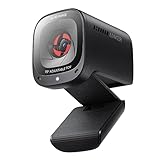
Anker PowerConf C300 Webcam
Features AI-powered auto-framing that keeps you centered in the shot automatically, even as you move. It also has a built-in noise-canceling mic that filters out background household noise. A good match for a more active meeting style, like standing up to use a whiteboard.
Pros
- AI auto-framing removes almost all need to manually adjust the angle
- Noise-canceling mic helps cut down on ambient noise
- Compact, easy-to-carry shape
Cons
- Turning tracking on/off may require a dedicated app
- No 4K support, so it may fall short if video quality is your top priority
Best for
Business professionals who often stand up and move around during meetings.🛒 Check the price →
OBSBOT Tiny 4K Webcam
Combines 4K resolution with AI person tracking, plus gesture controls that let you zoom in and out with just a hand motion. It also integrates with streaming software, making it a good fit for anyone who wants to build a serious streaming or commentary setup with automatic camera control.
Pros
- A feature-rich model combining 4K capture with AI tracking
- Gesture control enables hands-free zoom adjustments
- Feature set built with streaming in mind
Cons
- The abundance of features means a learning curve for initial setup and operation
- Overkill for simple meeting-only use
Best for
Anyone looking to seriously get into game commentary or live streaming.🛒 Check the price →

Logicool StreamCam C980
💰 ¥23,980
One of the few webcams that supports USB-C and vertical (portrait) video capture. Its feature set is geared toward creators shooting for vertical formats like Instagram and TikTok, while still offering Full HD and autofocus.
Pros
- Vertical capture makes it well-suited for social media content
- USB-C connection works well across a wide range of devices, including Macs
- AF and Full HD are solid enough for meeting use too
Cons
- PCs with only USB-A ports may require an adapter
- One resolution tier below the 4K models
Best for
Creators making vertical video content and streams for social media. 🛒 Check the price →

Microsoft Modern Webcam
💰 ¥5,200
Designed with Windows Hello facial recognition and Microsoft Teams integration in mind. It supports Full HD and autofocus, and tends to have fewer setup or driver issues in Windows environments — a natural fit for a business setting.
Pros
- Strong compatibility with Windows Hello and Teams
- Full HD and AF offer plenty of performance for meetings
- Smooth setup and installation on Windows
Cons
- Some features may not be fully usable on Mac
- No advanced features like AI tracking
Best for
Anyone standardizing on a camera for a Windows- and Teams-centric work environment.
Choosing by Use Case
- Buying your first webcam: The Logicool C920n or ELECOM UCAM-C920FBBK strikes a solid balance of price and features
- Prioritizing value for money: A focused model like the ELECOM UCAM-C920FBBK avoids paying for features you won't use
- Prioritizing streaming/recording quality: Consider a 4K model like the Logicool C980 or OBSBOT Tiny 4K
- Frequently standing up and moving around: The tracking features on the Anker PowerConf C300 or OBSBOT Tiny 4K are a strong fit
- Creating content for social media: The Logicool StreamCam C980, with vertical capture support, is a good candidate
- Working mainly in Windows/Teams: The Microsoft Modern Webcam prioritizes OS and app compatibility
FAQ
Q. Should I choose 1080p or 4K resolution for a webcam?
For everyday video calls, 1080p is enough. But if there's a chance you'll zoom in on or edit the footage later for streaming or archiving, choosing a 4K model gives you more headroom on image quality.
Q. Is autofocus absolutely necessary?
Even a fixed-focus model works fine in practice if you keep a consistent distance from the camera. But if you often stand up or move around, AF or auto-framing features will save you the hassle of constantly readjusting focus.
Q. Is a built-in mic good enough for meetings?
Most built-in mics work fine for typical meeting use. That said, some models are prone to picking up keyboard clicks and ambient noise, so if you can't guarantee a quiet environment, a model with noise cancellation is a safer choice.
Q. Should I choose USB-C or USB-A?
Match it to your PC's port type. Since more and more laptops now come with USB-C only, check your PC's port configuration before buying, and pick up an adapter if needed.
Q. How should I clean and maintain a webcam?
Wiping the lens gently with a dry, soft cloth is usually all the maintenance it needs, since dust and skin oils tend to build up on the surface. Avoid spraying alcohol or other strong solvents directly on it, as this can damage the lens coating.
Conclusion
Choosing a webcam is about more than resolution — autofocus, mic quality, field of view, and connection type all matter for finding the right fit for how you work.
- For a first camera or standard meeting use: the Logicool C920n or ELECOM UCAM-C920FBBK
- For streaming/recording quality: the Logicool C980 or OBSBOT Tiny 4K
- For active meetings or hands-free control: the Anker PowerConf C300 or OBSBOT Tiny 4K
- For vertical social media content: the Logicool StreamCam C980
- For a Windows/Teams-centric work setup: the Microsoft Modern Webcam
Narrow down your options based on how you actually use a webcam, and build yourself a comfortable setup for online communication.





![[2026 Latest] Fountain Pen Comparison Guide [2026 Edition]](/images/eyecatch/articles/fountain-pen-comparison-2026.png)
![[2026 Latest] Best Ballpoint Pens Compared: The Ultimate Ranking](/images/eyecatch/articles/ballpoint-pen-ranking-comparison.png)