

Choosing a mouse is often dismissed as "they're all pretty much the same," but the pain points people regret only surface after they start using one. The clicks turn out louder than expected, making you self-conscious in remote meetings. The battery dies mid-task. The size doesn't match your hand, and your wrist starts aching within hours. None of this shows up during a quick test-grip at the store.
The tricky part is that these weak points rarely appear in the prominent parts of the spec sheet. Terms like "wireless" and "5-button" are easy to spot, but the details that actually shape day-to-day comfort — whether the switches are quiet, the sensor type, the expected battery life, the body size — are buried in small print further down. As a result, people tend to choose based on price and looks alone.
This article lays out the criteria that actually matter when choosing a mouse, then compares six popular models from Elecom, Buffalo, and Logitech. We'll spell out not just the strengths but also the "points to watch" for each, so you can narrow down the one that fits how you actually work. We've also included conclusions by purpose — prioritizing quietness in the office, cutting down on battery swaps, reducing wrist strain — so you can jump straight to what matters to you.
How to Choose a Mouse: 5 Criteria for Avoiding Regret
1. Connection Type: 2.4GHz Wireless or Trackball
The current mainstream option is 2.4GHz wireless using a USB receiver. Just plug the receiver into your PC's USB port and it's recognized instantly — unlike Bluetooth, there's essentially no pairing process or reconnection lag after waking from sleep. All six models featured in this article use 2.4GHz wireless and work right out of the box with no driver installation required.
The key question is whether you have a free USB port. On slim laptops with few ports, the receiver will permanently occupy one. Decide upfront whether you'll pair it with a USB hub or are fine giving up a port. Note that receivers are often model-specific — if you lose one, the mouse itself typically becomes unusable. Whether a model has a built-in storage slot for the receiver is also worth checking if you're someone who travels with your mouse.
2. Sensor Type: BlueLED vs. IR Sensor
The tracking sensor on the underside of a mouse comes in several types, and this determines what surfaces the mouse will work on.
- BlueLED: Uses a blue LED. Its shorter wavelength picks up fine surface texture, so it tracks reliably on glossy tables, fabric, and roughly grained wood desks alike. Aside from a few materials like glass, it's largely surface-agnostic — a real strength.
- IR (Infrared) Sensor: Uses infrared light. Tracking precision is a step below BlueLED, but power consumption is lower, giving it a clear edge in battery life. On a mouse pad or an ordinary desk, it holds up fine for practical use.
- Optical (Red LED): The most common and typically the most affordable type, though it struggles on glossy or transparent surfaces.
Choose based on your actual work environment. If you'll also use it on a smooth café table or a fabric desk mat, go with BlueLED. If you always work at the same desk and prioritize battery life, an IR sensor is the clearer choice.
3. Quietness: How Much Does Click Noise Bother You?
As remote work and online meetings have become the norm, quiet switches have gone from nice-to-have to genuinely important. The typical "click" of a standard mouse is more noticeable than you'd think in a quiet room or within range of a microphone. Libraries, late-night work in your bedroom, working next to a sleeping family member, a household with a baby — there are plenty of situations where a quiet mouse makes a real difference.
The distinction is easy to spot: check whether the product name or spec sheet explicitly says "quiet" or "silent switch." If it's not mentioned, assume standard switches. That said, quiet switches tend to feel softer to press than standard ones. If you prefer a crisp, tactile click, know that you're trading some of that feel for reduced noise.
4. Battery Life and Power Type
One of the top frustrations with wireless mice is running out of battery mid-task. Spec sheets usually list an estimate like "up to XX days" or "up to X months" — always check this figure. Keep in mind it's the manufacturer's estimate based on assumed daily usage hours, so real-world battery life is typically shorter. Even so, it's still a useful benchmark for comparing products.
The number of batteries matters too:
- One AA battery: Tends to make the body a bit heavier, but generally extends battery life
- One AAA battery: Easier to keep lightweight — good for people with smaller hands or who prioritize portability
- Two batteries: Adds weight, but extends runtime further
A model rated for "over a year" of use effectively removes battery anxiety from your daily routine. For models rated in the range of a few months, keeping spare batteries in a drawer is the practical approach.
5. Size, Shape, and Hand Fit
Body size matters more the longer you use the mouse. If it's too small for your hand, you end up pinching it with just your fingertips, concentrating strain on your fingers and wrist. Too large, and you're constantly stretching your hand out.
As a general guideline, M-size fits an average-sized hand comfortably (a palm-grip style), S-size suits smaller hands or portability-focused use, and L-size is better for larger hands. Ergonomic models are molded asymmetrically to match the curve of your palm and the natural placement of your fingers, offering a noticeably different fit when you rest your whole hand on it.
Another option is a trackball. Instead of moving the whole device, you roll a ball with your thumb or another finger to move the pointer, eliminating the need to move your arm at all. It's a strong option if your desk space is limited or you want to reduce wrist strain. That said, the operating style is fundamentally different, so expect a few days of reduced speed while you adjust.
Spec Comparison Table
| Product | Sensor Type | Buttons | Quiet | Type |
|---|---|---|---|---|
| Elecom M-XGM10DBBK/E | BlueLED | 5-button | – | Ergonomic shape |
| Buffalo BSMBW325BK | BlueLED | 5-button | Quiet | Standard, dpi switching |
| Logitech M185CG | Optical | 3-button | – | Compact |
| Buffalo BSMBW315BK | BlueLED | 5-button | – | Long battery life (up to 584 days) |
| Logitech M575SPd | Optical | 5-button | Quiet | Trackball |
| Elecom M-IR07DRBK | IR sensor | 3-button | – | Power-efficient, simple |
6 Recommended Mice
Elecom Wireless Mouse M-size 5-Button BlueLED "Nigiri no Kiwami" Gunmetallic M-XGM10DBBK/E
This M-size wireless mouse is Elecom's "Nigiri no Kiwami" ("the ultimate grip") design, shaped to follow the contours of your hand. It's molded to match the curve of your palm and the natural angle of your fingers, so the contact points feel evenly distributed when you rest your whole hand on it. The sensor is BlueLED, so it's largely surface-agnostic on glossy tables and fabric desk mats. With 5 buttons including forward/back, it also helps streamline browser navigation and file operations.
Strengths
- Ergonomic shape that fits the hand, helping distribute strain during long work sessions
- BlueLED sensor means the desk surface material rarely matters
- 5-button layout with forward/back reduces the number of operations for web browsing and document work
Points to watch
- Not a quiet-switch model, so click noise may be noticeable in quiet environments
- Because the shape is molded to fit the hand, the ergonomic benefit is reduced if the M-size doesn't match your hand
Best for
People who spend most of their day at a PC and want to reduce hand fatigue. A top pick when grip comfort is your priority and click noise isn't a concern.🛒 Check the price →
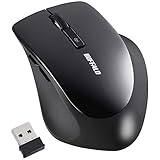
Buffalo Wireless Mouse, Quiet, 5-Button, dpi Switching, BlueLED, Black BSMBW325BK
This 5-button model combines quiet switches with dpi switching, aimed at office and remote-work use. The quiet design keeps operation noise from standing out during online meetings or in shared quiet spaces. Dpi switching lets you change pointer speed (sensitivity) with a button press, so you can toggle between fast, wide movement on a high-resolution display and precise, fine-grained selection. The sensor is BlueLED.
Strengths
- Quiet switches keep click noise unobtrusive during meetings or late-night work
- Dpi switching lets you adjust sensitivity to match screen size and task
- A well-rounded, practical spec set: BlueLED sensor plus 5 buttons
Points to watch
- The softer press feel typical of quiet switches may not suit everyone's taste
- Being more feature-rich, the body tends to run a bit larger than simple 3-button models
Best for
People who work from home with frequent online meetings, or who often work in shared offices or cafés. A solid pick when you want both quietness and functionality in one mouse.🛒 Check the price →
Logitech Wireless Mouse M185CG M185 Gray, Genuine Japan Import
A staple entry-level model from Logitech, featuring a simple 3-button layout and a compact body. By stripping away extra features, it leans fully into ease of use and portability, making it a great fit for tossing in a bag alongside your laptop. Just plug in the small USB receiver and it works immediately — no driver setup needed, which is part of the appeal of this long-running standard model. It's sold as a genuine Japan-market product, so you can count on solid support as well.
Strengths
- Compact and lightweight, ideal for carrying alongside a laptop
- Plug-and-play simplicity makes it easy to use as your first wireless mouse
- A long-standing Logitech staple with strong availability and the reassurance of genuine Japan-market support
Points to watch
- With only 3 buttons, it may feel limited if you rely heavily on forward/back navigation
- The compact body can lead to a pinch grip for people with larger hands
Best for
People buying their first wireless mouse, or anyone who wants a simple backup mouse for working outside the home. A go-to choice for those who want to keep things simple with minimal features.🛒 Check the price →
Buffalo Wireless Mouse, 5-Button, Up to 584 Days Battery Life, BlueLED, Black BSMBW315BK
This model leads with a battery life rated at "up to 584 days" — roughly one year and seven months. At that level, battery replacement becomes something you only think about occasionally. It achieves this power-efficient design without sacrificing features, still packing a BlueLED sensor and 5-button layout — this isn't a case of trading functionality for battery life. It's a clear win for anyone who wants to cut down on work interruptions caused by a dead battery.
Strengths
- A long battery life rated at up to 584 days significantly reduces how often you need to swap batteries or manage spares
- BlueLED sensor tracks reliably regardless of desk material
- 5-button layout including forward/back combines long battery life with practical functionality
Points to watch
- Not a quiet-switch model, so it's not ideal for environments where you want to minimize click noise
- The listed battery life is a manufacturer estimate; actual results will vary with usage time and conditions
Best for
People who are tired of the hassle of battery swaps or the stress of running out unexpectedly. Also convenient for shared office PCs or when deploying multiple units at once, since it cuts down on maintenance.🛒 Check the price →
Logitech Quiet Wireless Trackball Mouse M575SPd, Genuine Japan Import
This model pairs Logitech's well-known trackball design — where you roll a ball with your thumb to move the pointer, rather than moving the device itself — with quiet switches. Since the body stays put, it takes up almost no desk space, and eliminates arm movement entirely. Because it spares you from moving your wrist much, this category has long been favored by people looking to ease strain on the arm and wrist. It also comes with quiet switches, making it a good fit for environments where you want to keep click noise down.
Strengths
- Since the body doesn't move, it works in tight spaces — a small desk, even your lap
- Eliminates the need to move your whole arm, easing strain around the wrist
- Quiet switches make it comfortable to use during meetings or in quiet settings
Points to watch
- The operating feel is fundamentally different from a regular mouse, and it often takes a few days to adjust
- Dust and skin oils around the ball can make movement sticky over time, so periodic cleaning is needed
Best for
People who want to reduce wrist strain, or anyone with limited desk space for mouse movement. The learning curve pays off especially well for people doing extended PC work.🛒 Check the price →
Elecom Wireless Mouse M-size 3-Button IR Sensor Power-Efficient Black M-IR07DRBK
This simple 3-button M-size wireless mouse uses a power-efficient IR sensor. Infrared sensors draw less power than BlueLED, reflecting a clear design priority on extending battery life. The button layout is limited to left-click, right-click, and the wheel, so there's nothing to learn — anyone can pick it up without hesitation. The M-size body also accommodates a full palm-grip style.
Strengths
- The power-efficient IR sensor design prioritizes battery longevity
- Simple 3-button layout means you can start using it immediately, with nothing to configure
- The M-size body suits a palm-grip style comfortably
Points to watch
- Compared to BlueLED, it struggles more on glossy or glass surfaces
- No forward/back buttons, so it's not ideal for streamlining browser navigation
Best for
People who always work at the same desk and prioritize battery life and simplicity over extra features. Also a solid choice for a shared family PC or for handing to someone less comfortable with computers.
Choosing by Use Case
Buying Your First Wireless Mouse
The Logitech M185CG is the easy choice. Just plug in the receiver — there's almost nothing to configure. Its compact size also means it won't take up much space. If you'd rather not deal with deciding on button count or features, start here and move up to a 5-button model later if you find it lacking — that's the safest order to go in.
Balancing Value and Practicality
The Buffalo BSMBW315BK is a strong candidate. With a BlueLED sensor, 5 buttons, and up to 584 days of battery life, it covers everything you need for everyday PC work without excess. Factoring in battery costs and the hassle of replacement, it tends to keep your long-term total cost down.
Mainly Used in Office or Remote Meetings
If quietness is your top priority, go with the Buffalo BSMBW325BK. It combines quiet switches with dpi switching, so you don't have to worry about operation noise during meetings and can adjust sensitivity to match your screen size. The similarly quiet Logitech M575SPd is also a strong option if you want to save desk space at the same time.
Reducing Hand Fatigue During Long Sessions
The Elecom M-XGM10DBBK/E's "Nigiri no Kiwami" shape shines here. A design that lets you rest your whole palm helps avoid the concentrated strain that comes with a fingertip pinch grip. If you're already feeling wrist discomfort, it's worth considering the Logitech M575SPd trackball, which removes arm movement from the equation entirely.
Prioritizing Simplicity and Power Efficiency
Go with the Elecom M-IR07DRBK. Its power-efficient IR sensor design and straightforward 3-button layout make it easy to hand to someone with no interest in learning extra features.
FAQ
Q. Is a quiet mouse actually silent?
Not completely silent. Quiet switches are built to suppress the sharp "click" sound, but a faint "thock" from the button press still remains. Even so, the volume drops significantly compared to standard switches — enough that it's less likely to be picked up by a microphone during an online meeting. Rather than expecting total silence, think of it as a feature that brings the noise down to a level considerate of people around you or on a call.
Q. Should I choose BlueLED or an IR sensor?
The safest way to decide is by where you'll use it. If you move between environments — a smooth café table, a fabric desk mat, a roughly grained wooden desk — BlueLED is the safer bet. If you only ever use it at a fixed desk at home or the office, prioritizing the IR sensor's power efficiency is the more rational choice. Both struggle on transparent surfaces like glass, in which case simply adding a mouse pad is the easiest fix.
Q. How long does it take to get used to a trackball?
Generally, people adapt to the basic operation within a few days to one or two weeks. At first, it's normal to have trouble stopping the pointer exactly where you want and to feel your work slow down. If you do a lot of detail work, lowering the sensitivity setting before you start tends to help with precision. Since the payoff — not having to move your arm — is significant once you're used to it, the fastest path is to accept that the first week will be slower and just use it daily.
Q. How often do wireless mice need a battery change?
This varies widely by product, ranging anywhere from a few months to over a year and a half. The "up to XX days" figure on the spec sheet is a manufacturer estimate based on certain assumed usage conditions, so if you use it heavily every day, expect it to run shorter than that. If you want to minimize the hassle of replacements, be sure to compare the battery life listed before you buy. Symptoms like a jumpy pointer or sluggish response are often signs the battery is running low.
Q. How long does a mouse last, and does it need maintenance?
Click switches are generally rated for a few million to around ten million clicks, so under normal use a mouse is designed to last several years. In practice, people tend to replace one once they notice symptoms like double-clicking from a single click (chattering) or the scroll wheel skipping. Maintenance is minimal — wiping dust off the sensor window and the sole (the sliding surface on the underside) with a dry cloth is usually enough. For a trackball, periodically removing the ball to clean out grime around the support area helps prevent stiff movement.
Q. If I lose the USB receiver, will the mouse stop working?
Most 2.4GHz wireless mice pair the receiver and the body together, so losing the receiver generally makes the mouse unusable. Some manufacturers offer separate replacement parts or repair service, but this isn't guaranteed across the board. If you travel with your mouse often, choose a model with a built-in receiver storage slot, and make it a habit to store the receiver there whenever you're not using it — the most reliable safeguard.
Summary
Here's a recap of the 5 key points to check when choosing a mouse:
Here are the conclusions by reader type:
- First mouse: Logitech M185CG. Plug-and-play simplicity in a compact body
- Best balance: Buffalo BSMBW315BK. Combines long battery life with 5 buttons
- Meetings and quietness: Buffalo BSMBW325BK. Quiet switches plus dpi switching
- Reducing fatigue: Elecom M-XGM10DBBK/E. The hand-hugging "Nigiri no Kiwami" shape
- Reducing wrist strain: Logitech M575SPd. A quiet trackball that keeps your arm still
- Power efficiency and simplicity: Elecom M-IR07DRBK. IR sensor with a 3-button layout
All of these are well-established models with published specs, so the real deciding factor is which pain point you most want to eliminate. Is it noise, battery swaps, or hand fatigue? Once you settle on that one priority, the right mouse for you becomes obvious.



![[2026 Latest] Fountain Pen Comparison Guide [2026 Edition]](/images/eyecatch/articles/fountain-pen-comparison-2026.png)